Smart Home: Rebuild
In this post, I build a highly available Kubernetes cluster.
History & Why
Back in 2019, I was one of the early adopters of running Kubernetes on a Raspberry Pi, when ARM support finally came available in beta. And even got a few mentions on places like Stackoverflow [1] [2]. You can read the original article.
After six years of successful operation, with only a minor rebuild around 2022, there were a few motivations to upgrade…
- Concerns about how much longer the microsds could last, some being six years old.
- And attempting to take a backup would be too risky, and failure would be disruptive.
- Running only a single control plane node - YOLO.
- Most workloads on Raspberry Pi 4Bs - outdated and under-powered for 2025!
And the purpose and scale of my cluster had grown a lot, here’s present state…
  mindmap
  root((Home k8s Cluster))
    sh) Smart Home Microservices (
        Dashboard
        Dynamic DNS
        Home State
        Homepage
        Shareprice
        Undisclosed Service
        Trainbar Dashboard
        Uptime
        Weather
        Hibernate
        Light Switches
        Motion Lights
        State Trigger
        Smart Meter
        Sentinel
        Transport
    sup) k8s Supporting (
        Docker Registry
        Postgres via CrunchyData
        NFS Storage
        Vector
        Grafana
        Loki
        Istio
    svc) Services (
        Mumble VoIP Server
        Undisclosed Service
        Undisclosed Service
        Undisclosed Service
        Open Speed Test
        Ollama
        tmp("Temporary Gaming Server(s)")
Originally, the cluster was just for a custom-made distributed smart-home written in nodejs.
Now, everything from databases (with Crunchydata’s Postgres operator), gaming servers to undisclosed services with heavy loads are running on it. I even added a 2U rackmount ATX worker node that was effectively a gaming PC. But another risk, I only had a single node able to be that workhorse, despite a dual-module redundant PSU being installed.
After this many years, and the heavy utilisation beyond the original envisioned hack project, it was time to rebuild.
And since it controls the lights in my house, the switch-over needed to be minimum.
Disclaimer
This article is intended for a homelab environment, not production.
Some configuration is insecure, and shortcuts have been taken to minimise resource usage.
This article is provided for educational purposes.
Using AI to Migrate Services
Shout-out to JetBrains Goland for the built-in AI features, which have been used to migrate a lot of microservices from Node.js to Golang.
This has been done for a few reasons:
- Reduced runtime memory and CPU utilisation, generally greater performance
- Since Node.js is interpreted, whereas Golang is highly optimised machine code.
- Smaller container images with no effort.
- Better support for multi-threading, useful for e.g. background jobs.
Both ecosystems have my own monolithic library to reduce and industrialise code.
The Rebuild…
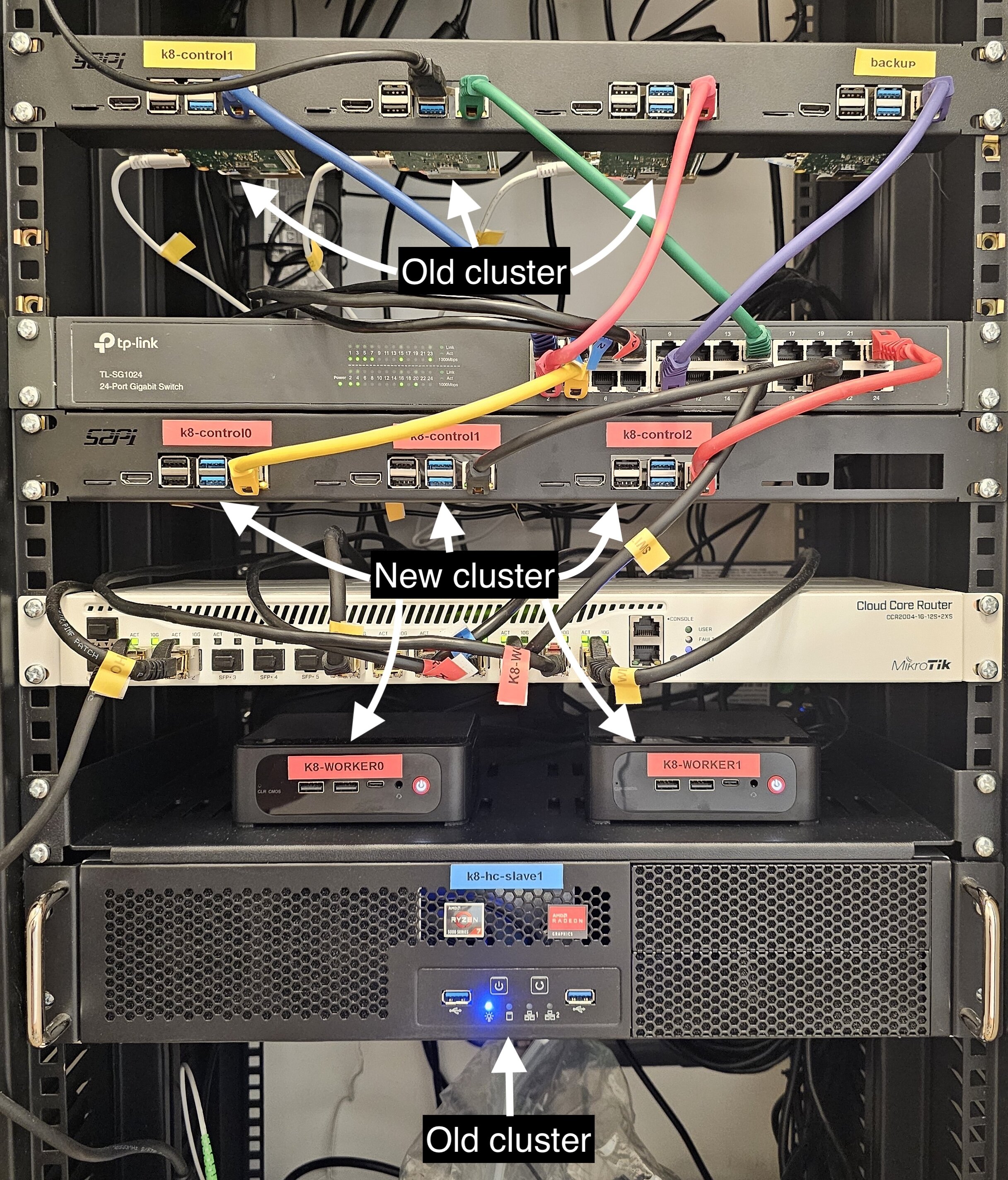
Topology of the old Kubernetes (k8s) cluster:
  mindmap
    root) Cluster (
        Control Plane Nodes
            <b>k8-control1</b><br />192.168.1.100<br />Raspberry PI 4B 4gb
        Worker Nodes
            <b>k8-worker1</b><br />192.168.1.101<br />Raspberry PI 4B 4gb
            <b>k8-worker2</b><br />192.168.1.102<br />Raspberry PI 4B 4gb
            <b>k8-hc-worker1</b><br />192.168.1.110<br />Used for heavy workloads, 8 core 16 thread 64gb DDR4.
Topology of the new Kubernetes (k8s) cluster:
  mindmap
    root) Cluster (
        Control Plane Nodes
            <b>k8-control0</b><br />192.168.4.10<br />Raspberry PI 5B 4gb
            <b>k8-control1</b><br />192.168.4.11<br />Raspberry PI 5B 4gb
            <b>k8-control2</b><br />192.168.4.12<br />Raspberry PI 5B 4gb
        Worker Nodes
            <b>k8-worker0</b><br />192.168.4.20<br />Ryzen Mini PC 8 core 16 thread 32gb DDR5
            <b>k8-worker1</b><br />192.168.4.21<br />Ryzen Mini PC 8 core 16 thread 32gb DDR5
Network
I’ve got a Mikrotik CCR2004-1G-12S+2XS router. Not only does it feature 10gbps and 25gbps SFP ports, it has many advanced and customisable features, such as:
- Multiple IP address pools
- BGP routing
We’ll use both of these features in later sections.
Setup IP Address Pools
I’ve decided to setup two IP ranges for my Kubernetes cluster:
192.168.4.0/24- for the control plane and worker nodes.192.168.5.0/24- for allocating IPs to services for external ingress.
For now, I’ve mapped these to the same LAN bridge. Whilst this may not be considered best practice, for now it saves the need for both a separate switch and physical interface (SFP port) on the router.
However, this enables putting the cluster on a separate fully isolated VLAN in the future, if needed, and avoids potential clashes from the various guests and devices on the rest of the network (non-k8s) using DHCP on a different IP range.
With a Mikrotik router, you just need to setup an address list (this will automatically create the routing between any other IP lists). I’ve got mine tied to a virtual interface, bridge-LAN, that bridges multiple physical interfaces to form a LAN:

And in my case, I needed to update a firewall list for LAN IPs - used to allow cross-communication between LAN devices:

Setup BGP (Routing) Peering
We’ll use BGP routing for two purposes:
- Control plane load balancing: enable the control plane to use BGP routing for high availability of the Kubernetes cluster control plane.
- Worker node external IP addresses: enable worker nodes to advertise IPs from
192.168.5.0/24for individual (Kubernetes) services.
Before the next step, we need to setup between the main router and control plane nodes, so we can peer the control plane nodes.
For each node, we need to add a BGP connection:


And we’ll end up with something like:

Generic Control Plane & Worker Machine Setup
Download Debian 13 to a USB device, and install on each machine, with SSH server enabled, and no graphical interface (not needed).
Install some common utility packages:
sudo apt install -y net-tools dnsutils sudo vim htop
Disable Swap
Swap must be disabled, for stability, when running Kubernetes.
By default, swap will be enabled on most installations:
root@k8-control0:~# swapon --show
NAME       TYPE      SIZE USED PRIO
/dev/zram0 partition   2G   0B  100
Thus, to disable swap:
sudo systemctl mask swap.target
Quick reboot:
sudo reboot
And validate it’s now disabled (should return nothing):
sudo swapon --show
Non-Raspberry Pi Steps
Note: for the network configuration demonstrated in this section, you could use NetworkManager (via nmtui) as shown in the Raspberry Pi section. NetworkManager is best practice for Linux, I’ve opted for an older setup process, either can work.
Make my non-root user a sudoer, so I can use root from SSH:
adduser limpygnome sudo
Configure network:
vim /etc/network/interfaces
Comment out other config for the primary interface, named eno1 in my case
(change details as needed for your network):
# Allow network cable to be changed
allow-hotplug eno1

# Ensure network interface starts automatically
auto eno1

# Set static network config
iface eno1 inet static
    address 192.168.4.20
    netmask 255.255.255.0
    gateway 192.168.4.1
    dns-nameservers 192.168.4.1

# Set IPv6 to automatic (DHCP)
iface eno1 inet6 auto
Note: you can find your current network interface by running ifconfig.
And apply the new network settings:
service systemctl restart networking
And for DNS, as DHCP manager is disabled, we can just override the resolv.conf file:
sudo bash -c 'cat > /etc/resolv.conf <<EOF
nameserver 192.168.4.1
EOF'
Raspberry Pi Steps
Use the following command to set the network configuration:
sudo nmtui
Example:

And either reboot or restart the network manager to apply changes:
sudo systemctl restart NetworkManager
Next, we need to enable a Linux kernel feature called cgroup (control group) for memory management, which is not enabled out of the box on a Raspberry Pi. This will enable Kubernetes to offload the memory management to the operating system, for consistent resource limiting (via throttling or killing processes with out-of-memory / OOM exit codes).
We’ll need to enable the command-line used to boot the operating system, let’s edit it:
sudo vim /boot/firmware/cmdline.txt
At the end of the line, add:
cgroup_enable=memory cgroup_memory=1
Save the file, and reboot:
sudo reboot
Enable Packet Forwarding (All Nodes)
We need to enable all nodes to function as routers, so the Kubernetes container networking can pass packets between nodes directly:
echo "net.ipv4.ip_forward=1" | sudo tee /etc/sysctl.d/99-kubernetes.conf
sudo sysctl --system
Setup containerd (All Nodes)
containerd is used to run the containers, a container runtime, equivalent to Docker in the past.
Install the required package:
sudo apt install -y containerd
Ensure we use systemd (which uses cgroups) for managing resources (CPU, memory, etc) of containers:
sudo mkdir -p /etc/containerd

containerd config default | sudo tee /etc/containerd/config.toml >/dev/null

sudo sed -i 's/SystemdCgroup = false/SystemdCgroup = true/' /etc/containerd/config.toml
Restart containerd, and have it automatically startup:
sudo systemctl restart containerd
sudo systemctl enable containerd
Install Kubernetes (All Nodes)
We’ll be using v1.34.2 (the latest at the time of this article), check for the latest release here.
Install the repository and the components:
sudo apt install -y apt-transport-https curl gpg

sudo mkdir -p /etc/apt/keyrings

curl -fsSL https://pkgs.k8s.io/core:/stable:/v1.34/deb/Release.key \
  | sudo gpg --dearmor -o /etc/apt/keyrings/kubernetes-apt-keyring.gpg

echo "deb [signed-by=/etc/apt/keyrings/kubernetes-apt-keyring.gpg] \
https://pkgs.k8s.io/core:/stable:/v1.34/deb/ /" \
  | sudo tee /etc/apt/sources.list.d/kubernetes.list

sudo apt update

sudo apt install -y kubelet kubeadm kubectl
And prevent automatic upgrades:
sudo apt-mark hold kubelet kubeadm kubectl
This is to ensure we upgrade all the nodes together in the future. Otherwise, we risk updates breaking nodes.
Since containerd points at a different directory for cni to the Debian default, we’ll just symlink:
sudo ln -s /opt/cni/bin /usr/lib/cni
Setup kube-vip (All Control Plane Nodes)
Apply these steps to each control plane node.
In my case, this will be: k8-control0, k8-control1, and k8-control2.
We’re going to install kube-vip as a container, independent of Kubernetes, which will provide a virtual IP for the control plane nodes to use for load balancing, for high availability. I’ve opted to use BGP routing, so my local network switch is doing the heavy lifting.
These steps were derived from here, and may change over time:
We first define env variables for the IP of the VIP, the interface to announce the VIP, and the version of kube-vip to be used:
export VIP=192.168.4.100
export INTERFACE=eth0
export KVVERSION=v1.0.2
And setup an alias to run kube-vip using containerd:
alias kube-vip="ctr image pull ghcr.io/kube-vip/kube-vip:$KVVERSION; ctr run --rm --net-host ghcr.io/kube-vip/kube-vip:$KVVERSION vip /kube-vip"
And generate a manifest (config file) for BGP:
kube-vip manifest pod \
    --interface $INTERFACE \
    --address $VIP \
    --controlplane \
    --services \
    --bgp \
    --localAS 64512 \
    --bgpRouterID 192.168.4.1 \
    --bgppeers 192.168.4.10:64512::false,192.168.0.11:64512::false,192.168.0.12:64512::false | tee /etc/kubernetes/manifests/kube-vip.yaml
Setup First Control Node
Login to the first control plane node, k8-control0 in my case.
Run the following to setup a new cluster:
kubeadm init \
  --control-plane-endpoint "192.168.4.100:6443" \
  --pod-network-cidr=10.244.0.0/16 \
  --service-cidr=10.244.240.0/20 \
  --token-ttl=0 \
  --upload-certs
Make sure to save the joining command (kubeadm join ... --token ... for later).
Note: The argument --upload-certs will store the control plane certificates as a secret, which expires
after two hours. This makes it easier to add additional control plane nodes, but it must be done before
expiry. Otherwise, you’ll need to manually copy the certificates from /etc/kubernetes/pki/
to the other control plane machines, or run the following to re-create the secret with a two hour expiry:
kubeadm init phase upload-certs --upload-certs
Warning: this will create a joining token that does not expire. This has been done for simplicity, and should NOT be used for any production workloads.
Setup kubectl
mkdir -p $HOME/.kube
sudo cp -i /etc/kubernetes/admin.conf $HOME/.kube/config
sudo chown $(id -u):$(id -g) $HOME/.kube/config
Install Container Networking
We’re going to use Calico.
Install it into the cluster by running:
kubectl apply -f https://docs.projectcalico.org/manifests/calico.yaml
And check all the pods are starting up:
kubectl get pods -A
Pro-tip: rather than smashing the command, use watch -n 1 kubectl get pods -A.
And check the control plane node is reported as Ready:
kubectl get nodes
Add Remaining Control Nodes
In this case, adding k8-control1 and k8-control2.
Login to each control plane node, and run the join command outputted earlier that contains
--control-plane and --certificate-key (kubeadm join ... --control-plane ... --certificate-key ...).
Add Worker Nodes
Login to k8-worker0, k8-worker1, and k8-worker2.
Apply the joining command outputted earlier that does not contain --control-plane and --certificate-key.
Helm
For various installations, we’ll be using helm.
For these steps, you could run this anywhere with kubectl access. For simplicity, I’ll do this from k8-control0.
We’ll run the installation from k8-control0.
Taken from the official install helm steps:
sudo apt-get install curl gpg apt-transport-https --yes
curl -fsSL https://packages.buildkite.com/helm-linux/helm-debian/gpgkey | gpg --dearmor | sudo tee /usr/share/keyrings/helm.gpg > /dev/null
echo "deb [signed-by=/usr/share/keyrings/helm.gpg] https://packages.buildkite.com/helm-linux/helm-debian/any/ any main" | sudo tee /etc/apt/sources.list.d/helm-stable-debian.list
sudo apt-get update
sudo apt-get install helm
kubectl on Local Machine
Logon to k8-control0, and ensure the file ~/.kube/config exists on a user that can login via SSH.
If you have the file under the root user, first copy it to a non-root user that can SSH. For example, logged-in
as the non-root user:
mkdir -p ~/.kube

sudo cp /root/.kube/config ~/.kube/

sudo chown $USER:$USER ~/.kube/config
And test it works:
kubectl get node
And then on your local machine:
scp [email protected]:~/.kube/config ~/.kube/
And if you haven’t installed kubectl, install it. Example for Mac:
brew install kubernetes-cli
And on your local machine, test it works:
kubectl get nodes
Kubernetes Dashboard
A useful tool to check the health of the cluster is the Kubernetes Dashboard.
Run the following:
helm repo add kubernetes-dashboard https://kubernetes.github.io/dashboard/

helm repo update

helm upgrade --install kubernetes-dashboard kubernetes-dashboard/kubernetes-dashboard --create-namespace --namespace kubernetes-dashboard
We’ll now create a user that can login to the dashboard.
Put the following in the file dashboard-user.yaml:
apiVersion: v1
kind: ServiceAccount
metadata:
  name: admin-user
  namespace: kubernetes-dashboard
---
apiVersion: rbac.authorization.k8s.io/v1
kind: ClusterRoleBinding
metadata:
  name: admin-user
roleRef:
  apiGroup: rbac.authorization.k8s.io
  kind: ClusterRole
  name: cluster-admin
subjects:
- kind: ServiceAccount
  name: admin-user
  namespace: kubernetes-dashboard
And apply it:
kubectl apply -f dashboard-user.yaml
From your local dev machine (not a control plane node), you can port forward the dashboard to a local port to access it in a browser:
kubectl -n kubernetes-dashboard port-forward svc/kubernetes-dashboard-kong-proxy 8443:443
Note: navigate to kubectl on Local Machine section above if you need to setup kubectl on your machine.
And open the following URL in your browser:
And generate a token to login to the above page:
kubectl -n kubernetes-dashboard create token admin-user
Setup Storage
For distributed (block) storage, we’ll use Longhorn.
This will enable services to ask for storage, which is then replicated between other worker nodes, and backed-up to an NFS mount outside the cluster.
Installation
First, we’ll install the required packages on every single node:
apt install -y open-iscsi
And enable, and startup, iSCSID:
sudo systemctl enable --now iscsid
sudo systemctl status iscsid
And from k8-control0, we’ll install Longhorn onto Kubernetes using helm:
helm repo add longhorn https://charts.longhorn.io

helm repo update

helm install longhorn longhorn/longhorn --namespace longhorn-system --create-namespace --version 1.10.1
Setup Storage Class
Longhorn will store data at the default path /var/lib/longhorn/. For this setup, we’re going to leave
it unchanged.
Setup Backups
We’ll backup storage to an NFS drive every night.
On all nodes, make sure nfs is installed:
apt install -y nfs-common
Configure Longhorn with an NFS mount as a backup target…
Put the following in the file longhorn-backup-target.yaml:
apiVersion: longhorn.io/v1beta2
kind: BackupTarget
metadata:
  name: default
  namespace: longhorn-system
spec:
  backupTargetURL: "nfs://nas3.home:/volume1/k8-data/longhorn-backup"
  credentialSecret: ""
  pollInterval: "300s"
And apply it:
kubectl apply -f longhorn-backup-setting.yaml
Note: in my setup, I have a NAS with an NFS endpoint setup, not covered by this guide.
Create a nightly job to perform the backup…
Put the following in the file longhorn-backup.yaml:
apiVersion: longhorn.io/v1beta2
kind: RecurringJob
metadata:
  name: nightly-backup
  namespace: longhorn-system
spec:
  name: nightly-backup
  task: backup
  cron: "0 3 * * *"   # Every night at 03:00
  retain: 1           # Keep 1 backups
  concurrency: 1
  groups:
    - default
And apply it:
kubectl apply -f longhorn-backup.yaml
Create Storage Class
This is effectively configuration to use Longhorn, and how to use it, with volume claims.
Put this in the file longhorn-storage-class.yaml:
kind: StorageClass
apiVersion: storage.k8s.io/v1
metadata:
  name: longhorn-retain
  annotations:
    storageclass.kubernetes.io/is-default-class: "true"
provisioner: driver.longhorn.io
allowVolumeExpansion: true
reclaimPolicy: Retain
volumeBindingMode: Immediate
parameters:
  numberOfReplicas: "2"
  staleReplicaTimeout: "2880"
  fromBackup: ""
  fsType: "ext4"
And apply it:
kubectl apply -f longhorn-storage-class.yaml
Create Volume
We can now create a volume, let’s test it.
Put this in the file longhorn-test.yaml:
apiVersion: v1
kind: Namespace
metadata:
  name: testing
---
apiVersion: v1
kind: PersistentVolumeClaim
metadata:
  name: test-pvc
  namespace: testing
spec:
  accessModes:
  - ReadWriteOnce
  resources:
    requests:
      storage: 100Mi
And apply it:
kubectl apply -f longhorn-test.yaml
You can then check it’s bound:
kubectl get pvc -n testing
You should see the storageclass column is longhorn-retain, example:
❯ kubectl get pvc -n testing
NAME       STATUS   VOLUME                                     CAPACITY   ACCESS MODES   STORAGECLASS      VOLUMEATTRIBUTESCLASS
test-pvc   Bound    pvc-4f37e713-7665-4278-9fdd-fa42cc9dbdb2   100Mi      RWO            longhorn-retain   <unset>
Setup Load Balancing
We’ll enable external access to services by setting up load balancing, using Metal LB.
Whilst we could use kube-vip with a single VIP (virtual IP), Metal LB enables us to assign a pool of IPs instead.
Setup Pool
In the network section, we already setup the pool 192.168.5.0/24 and BGP connections to all the worker nodes. These two steps are a prerequisite.
Installation
First, create a namespace:
kubectl create namespace metallb-system
And then install it using Helm:
helm repo add metallb https://metallb.github.io/metallb -n metallb-system

helm repo update

helm install metallb metallb/metallb -n metallb-system
Configuration
Create the file metallb.yaml:
apiVersion: metallb.io/v1beta2
kind: BGPPeer
metadata:
  name: default
  namespace: metallb-system
spec:
  myASN: 64512
  peerASN: 64512
  peerAddress: 192.168.4.1
---
apiVersion: metallb.io/v1beta1
kind: IPAddressPool
metadata:
  name: default
  namespace: metallb-system
spec:
  addresses:
  - 192.168.5.2-192.168.5.255
---
apiVersion: metallb.io/v1beta1
kind: BGPAdvertisement
metadata:
  name: default
  namespace: metallb-system
Note: 192.168.5.1 is excluded, as the router serves this IP as a gateway.
And apply it:
kubectl apply -f metallb.yaml
We can now assign an IP to a Kubernetes service.
Example of static allocation (metallb.io/loadBalancerIPs annotation):
apiVersion: v1
kind: Service
metadata:
  name: foobar
  annotations:
    metallb.io/loadBalancerIPs: 192.168.5.123
spec:
  type: LoadBalancer
  ports:
    - port: 80
      targetPort: 80
  selector:
    app: foobar
Example of dynamic allocation (type: LoadBalancer):
apiVersion: v1
kind: Service
metadata:
  name: foobar
spec:
  type: LoadBalancer
  ports:
  - port: 80
    targetPort: 80
  selector:
    app: foobar
See the docs for usage.
Setup Logging
For application logging, we’ll use:
- Vector to export logs from Kubernetes containers to Loki.
- This run as a daemon set.
- Loki to capture, store, and query data.
- Grafana as a frontend, which will connect to Loki to query data.
Loki
This deployment is not designed for production, with only a single replica running, and based on the instructions found here:
First, let’s create a dedicated namespace:
kubectl create namespace loki
Create the file loki-values.yaml:
loki:
  auth_enabled: false

  server:
    http_listen_port: 3100
    grpc_listen_port: 9096

  storage:
    type: filesystem
    filesystem:
      chunks_directory: /var/loki/chunks
      rules_directory: /var/loki/rules
    bucketNames:
      chunks: loki-local-chunks
      ruler: loki-local-ruler
      admin: loki-local-admin

  commonConfig:
    replication_factor: 1

  schemaConfig:
    configs:
      - from: "2024-04-01"
        store: tsdb
        object_store: filesystem
        schema: v13
        index:
          prefix: loki_index_
          period: 24h

  ruler:
    enable_api: true
    storage:
      type: local
      local:
        directory: /var/loki/rules
    rule_path: /tmp/loki/rules
    alertmanager_url: ""
    ring:
      kvstore:
        store: inmemory

  persistence:
    enabled: true
    size: 10Gi
    storageClassName: ""

  pattern_ingester:
    enabled: true

  limits_config:
    allow_structured_metadata: true
    volume_enabled: true
    retention_period: 8760h

# Disable canary (spams logs)
monitoring:
  selfMonitoring:
    enabled: false
    grafanaAgent:
      installOperator: false
test:
  enabled: false
lokiCanary:
  enabled: false

deploymentMode: SingleBinary

singleBinary:
  replicas: 1

# Zero out replica counts of other deployment modes
backend:
  replicas: 0
read:
  replicas: 0
write:
  replicas: 0

ingester:
  replicas: 0
querier:
  replicas: 0
queryFrontend:
  replicas: 0
queryScheduler:
  replicas: 0
distributor:
  replicas: 0
compactor:
  replicas: 0
indexGateway:
  replicas: 0
bloomCompactor:
  replicas: 0
bloomGateway:
  replicas: 0
And then deploy Loki, using helm:
helm repo add grafana https://grafana.github.io/helm-charts

helm repo update

helm upgrade loki grafana/loki -f loki-values.yaml -n loki
And check Loki is running:
kubectl get pods -n loki
Validate Loki
This section is optional, but just to ensure Loki is working.
We can run the following command to port forward Loki to our local machine:
kubectl port-forward --namespace loki svc/loki 3100:3100
And then fetch the /ready page to check it’s ready:
curl -kv http://127.0.0.1:3100/ready
We can also test sending and querying logs.
From our local machine, let’s port forward Loki gateway:
kubectl port-forward --namespace loki svc/loki-gateway 3100:80
And push data:
curl -kv -H "Content-Type: application/json" -XPOST -s "http://127.0.0.1:3100/loki/api/v1/push"  \
--data-raw "{\"streams\": [{\"stream\": {\"job\": \"test\"}, \"values\": [[\"$(date +%s)000000000\", \"fizzbuzz\"]]}]}"
And check the data was received:
curl "http://127.0.0.1:3100/loki/api/v1/query_range" --data-urlencode 'query={job="test"}' | jq .data.result
Vector
We’ll use Vector to export the output from pods to Loki.
First, let’s create a dedicated namespace:
kubectl create namespace vector
We’ll also exclude a few namespaces from vector:
kubectl label namespace vector "vector.dev/exclude=true"
kubectl label namespace loki "vector.dev/exclude=true"
And create the file vector-values.yaml:
# Run Vector as an agent (DaemonSet on each node)
role: "Agent"

service:
  enabled: false

customConfig:
  # Read all container logs, but exclude namespaces related to logging
  sources:
    kubernetes_logs:
      type: kubernetes_logs

  # Transform JSON into key-values
  transforms:
    json:
      type: remap
      inputs:
        - kubernetes_logs
      source: |-
        json = parse_json!(.message)
        . = merge(., json) ?? .
    keyvalue:
      type: remap
      inputs:
        - kubernetes_logs
      source: |-
        kv = parse_key_value!(.message)
        . = merge(., kv)

  # Send logs to Loki
  sinks:
    loki:
      type: loki
      inputs:
        - json

      # Loki HTTP endpoint (adjust namespace/name if yours differ)
      endpoint: "http://loki.loki.svc.cluster.local:3100"

      encoding:
        codec: json

      # Loki will accept logs that arrive slightly out-of-order
      out_of_order_action: accept

      # Labels attached to each log line in Loki
      labels:
        forwarder: vector
        k8_namespace: "{{`{{ kubernetes.pod_namespace }}`}}"
        k8_pod_name: "{{`{{ kubernetes.pod_name }}`}}"
        k8_pod_node_name: "{{`{{ kubernetes.pod_node_name }}`}}"
        k8_container_name: "{{`{{ kubernetes.container_name }}`}}"
        stream: "{{`{{ stream }}`}}"
And install Vector into the namespace:
helm repo add vector https://helm.vector.dev

helm repo update

helm install vector vector/vector \
  -n vector \
  -f vector-values.yaml
Grafana
This will connect to Loki to query and use the log messages.
First, let’s create a namespace:
kubectl create namespace grafana
And install Grafana into it:
helm repo add grafana https://grafana.github.io/helm-charts

helm repo update

helm install grafana grafana/grafana \
  -n grafana \
  --set adminUser=admin \
  --set adminPassword=admin \
  --set service.type=LoadBalancer
Since we specified service.type=LoadBalancer, an IP will be allocated to Grafana.
We can find it by running:
kubectl get svc -n grafana
In my case, the External IP is 192.168.5.2.
Thus, I can visit the following in my browser:
The initial login will be admin/admin.
You will be prompted to set a new password on first login.
Configure Grafana
Once logged into Grafana, navigate to Connections > Data sources:

Click Add data source:

Select Loki:

And enter the following URL for the URL field:
http://loki-gateway.loki.svc.cluster.local/

Scroll down and click Save & test.
Testing
In Grafana, navigate to Drilldown on the sidebar, and click Logs:

And then click Show logs for unknown_service:

And you should, hopefully, see some logs:

Istio
We’ll install Istio, a Kubernetes operator, as it has many useful features.
One of the main features we can use is Gateway API, so we can have multiple services under the same hostname, but different paths.
First, let’s create a namespace:
kubectl create namespace istio-system
And then install Istio using Helm:
helm repo add istio https://istio-release.storage.googleapis.com/charts

helm repo update

helm upgrade --install istio-base istio/base \
  -n istio-system --wait

helm upgrade --install istiod istio/istiod \
  -n istio-system --wait

helm upgrade --install istio-ingress istio/gateway \
  -n istio-system --wait

helm install istio-ingressgateway istio/gateway \
  -n istio-system --wait
We can then get the external IP for Istio gateway:
kubectl get svc istio-ingress -n istio-system \
  -o jsonpath='{.status.loadBalancer.ingress[0].ip}{"\n"}'
You can then create DNS records on a local DNS server that point to the above IP, when using the Gateway API.
Postgres
We’ll use the CrunchyData Postgres Kubernetes operator.
Installation
Using these installation steps:
If git is not installed, install it:
sudo apt install git
First, let’s clone the examples repo:
git clone https://github.com/CrunchyData/postgres-operator-examples
Then, install the operator:
kubectl apply -k postgres-operator-examples/kustomize/install/namespace

kubectl apply --server-side -k postgres-operator-examples/kustomize/install/default
And let’s wait until the operator is Running:
kubectl -n postgres-operator get pods --selector=postgres-operator.crunchydata.com/control-plane=postgres-operator --field-selector=status.phase=Running
Creating a Database Cluster
Then, create the file postgres.yaml:
apiVersion: v1
kind: Namespace
metadata:
  name: pg-default
---
apiVersion: postgres-operator.crunchydata.com/v1beta1
kind: PostgresCluster
metadata:
  name: default
  namespace: pg-default
  annotations:
    postgres-operator.crunchydata.com/autoCreateUserSchema: "true"
spec:
  postgresVersion: 17
  users:
    - name: admin
      databases:
        - hello_world
  instances:
    - name: ha
      replicas: 2
      dataVolumeClaimSpec:
        accessModes:
        - "ReadWriteOnce"
        resources:
          requests:
            storage: 5Gi
      affinity:
        podAntiAffinity:
          preferredDuringSchedulingIgnoredDuringExecution:
          - weight: 1
            podAffinityTerm:
              topologyKey: kubernetes.io/hostname
              labelSelector:
                matchLabels:
                  postgres-operator.crunchydata.com/cluster: default
                  postgres-operator.crunchydata.com/instance-set: ha
  backups:
    pgbackrest:
      repos:
      - name: repo1
        volume:
          volumeClaimSpec:
            accessModes:
            - "ReadWriteOnce"
            resources:
              requests:
                storage: 5Gi
Note:
- This will deploy two replicas i.e. two database pods.
- It will try to schedule the pods on different worker nodes.
- We’ve avoided a spread constraint, as this Kubernetes cluster only has two worker nodes.
And then apply the file to create the Postgres cluster:
kubectl apply -f postgres.yaml
Testing Database Cluster
We’ll use pgAdmin on our local dev machine, as it features a rich UI:
Let’s port forward the database to our local dev machine:
PG_CLUSTER_PRIMARY_POD=$(kubectl get pod -n pg-default -o name -l postgres-operator.crunchydata.com/cluster=default,postgres-operator.crunchydata.com/role=master)
kubectl -n pg-default port-forward "${PG_CLUSTER_PRIMARY_POD}" 5431:5432
Let’s dump the username (ignore trailing %):
kubectl get secret default-pguser-admin -n pg-default -o yaml -o go-template='{{.data.user | base64decode}}'
And dump the password (ignore trailing %):
kubectl get secret default-pguser-admin -n pg-default -o yaml -o go-template='{{.data.password | base64decode}}'
And then register a new server in pgAdmin:

Note: the port 5431 is exposed on the dev machine, as to avoid a conflict with a local running Postgres.
Once connected, the Activity tab should start to populate with statistics:

Docker Registry
We’ll setup a Docker registry for custom, and even keeping backups of public, container images.
Note: this is not a production setup, and features no security.
Setup
First, let’s create a namespace:
kubectl create namespace registry
And then create a secret with the user and pass for the registry (change as needed):
kubectl create secret generic registry-basic-auth \
  -n registry \
  --from-literal=REGISTRY_USERNAME=svc_registry \
  --from-literal=REGISTRY_PASSWORD=mypassword123
And then create the file registry.yaml:
apiVersion: v1
kind: PersistentVolumeClaim
metadata:
  name: registry-pvc
  namespace: registry
spec:
  accessModes:
    - ReadWriteOnce
  resources:
    requests:
      storage: 50Gi
---
apiVersion: apps/v1
kind: Deployment
metadata:
  name: docker-registry
  namespace: registry
spec:
  replicas: 1
  selector:
    matchLabels:
      app: docker-registry
  template:
    metadata:
      labels:
        app: docker-registry
    spec:
      initContainers:
        - name: generate-htpasswd
          image: httpd:2.4
          command: ["/bin/sh", "-c"]
          args:
            - |
              htpasswd -Bbc /auth/htpasswd "$REGISTRY_USERNAME" "$REGISTRY_PASSWORD"
          envFrom:
            - secretRef:
                name: registry-basic-auth
          volumeMounts:
            - name: auth
              mountPath: /auth
      containers:
        - name: registry
          image: registry:3
          ports:
            - containerPort: 5000
          volumeMounts:
            - name: registry-storage
              mountPath: /var/lib/registry
            - name: auth
              mountPath: /auth
              readOnly: true
          env:
            - name: REGISTRY_AUTH
              value: htpasswd
            - name: REGISTRY_AUTH_HTPASSWD_REALM
              value: Registry Realm
            - name: REGISTRY_AUTH_HTPASSWD_PATH
              value: /auth/htpasswd
      volumes:
        - name: registry-storage
          persistentVolumeClaim:
            claimName: registry-pvc
        - name: auth
          emptyDir: {}
---
kind: Service
apiVersion: v1
metadata:
  namespace: registry
  name: registry
  annotations:
    metallb.io/loadBalancerIPs: 192.168.5.200
spec:
  type: LoadBalancer
  selector:
    app: docker-registry
  ports:
    - name: main
      protocol: TCP
      port: 5000
      targetPort: 5000
And apply it:
kubectl apply -f registry.yaml
This will create a Docker registry with the user/pass, and I’ve set a static IP of 192.168.5.200.
Testing
We’ll run these steps from our local dev machine.
Make sure you’ve got podman installed on your machine.
Otherwise, to install it on Mac:
brew install podman
Startup your podman machine, if it’s not already running:
podman machin init;
podman machine start;
Let’s attempt to login to the registry:
podman login --tls-verify=false 192.168.5.200:5000
When prompted, enter the user and pass for the registry (as configured earlier).
You should see something like:
> podman login --tls-verify=false 192.168.5.200:5000
Username: svc_registry
Password:
Login Succeeded!
Worker Configuration
Note: for this section, you’ll see a reference to registry.home, which is just a static DNS record on the router pointing to 192.168.5.200.
We’ll need to configure containerd to allow our registry to be insecure.
Repeat these steps for each worker node (and control plane nodes if they need to pull from the registry)…
Once logged-in, go to edit the containerd config file:
sudo vim /etc/containerd/config.toml
Find the section with plugins."io.containerd.grpc.v1.cri".registry, and add the below with the correct indentation:
[plugins."io.containerd.grpc.v1.cri".registry.mirrors."registry.home:5000"]
  endpoint = ["http://registry.home:5000"]

[plugins."io.containerd.grpc.v1.cri".registry.configs."registry.home:5000".tls]
  insecure_skip_verify = true
As an example of before:

And an example of after adding the config:

And restart containerd:
sudo systemctl restart containerd
Pulling Images
The user/pass of the registry can be either added through an image pull secret:
Or added to a Kubernetes service account (recommended):
We’ll go with the service account approach.
For each namespace, we’ll need to repeat these steps…
First, create the secret:
kubectl create secret docker-registry myregistrykey --docker-server=192.168.5.200:5000 \
        --docker-username=svc_registry --docker-password=mypassword123 \
        --docker-email=dummy@localhost \
        -n default
And next, patch the default service account for the namespace to use the secret:
kubectl patch serviceaccount default -p '{"imagePullSecrets": [{"name": "myregistrykey"}]}' \
  -n default
Gallery
 The rack housing the cluster.
 Rack up-close and annotated.
 Back of the rack.
 Top of the rack, featuring: wifi router, zigbee dongles, and
smart meter CAD.
Top of the rack, featuring: wifi router, zigbee dongles, and
smart meter CAD. Quite literally down to the millimeter when the closet door is shut.
References
Helm Chart Versions
This is a snapshot of the Helm chart versions at the time of writing this article.
root@k8-control0:~# helm list -A
NAME                	NAMESPACE           	REVISION	UPDATED                                	STATUS  	CHART                      	APP VERSION
grafana             	grafana             	1       	2025-12-07 23:23:37.526374675 +0000 UTC	deployed	grafana-10.3.0             	12.3.0
istio-base          	istio-system        	4       	2025-12-09 14:54:08.375236113 +0000 UTC	deployed	base-1.28.1                	1.28.1
istio-ingress       	istio-system        	2       	2025-12-09 14:53:50.795096567 +0000 UTC	deployed	gateway-1.28.1             	1.28.1
istio-ingressgateway	istio-system        	1       	2025-12-10 22:46:37.225130713 +0000 UTC	deployed	gateway-1.28.1             	1.28.1
istiod              	istio-system        	1       	2025-12-09 14:51:43.713766538 +0000 UTC	deployed	istiod-1.28.1              	1.28.1
kubernetes-dashboard	kubernetes-dashboard	1       	2025-12-06 01:52:39.197123797 +0000 UTC	deployed	kubernetes-dashboard-7.14.0
loki                	loki                	4       	2025-12-08 00:54:57.875622636 +0000 UTC	deployed	loki-6.46.0                	3.5.7
longhorn            	longhorn-system     	1       	2025-12-06 00:46:46.309632008 +0000 UTC	deployed	longhorn-1.10.1            	v1.10.1
metallb             	metallb-system      	1       	2025-12-07 22:57:24.216214839 +0000 UTC	deployed	metallb-0.15.3             	v0.15.3
vector              	vector              	1       	2025-12-08 00:41:15.355666911 +0000 UTC	deployed	vector-0.48.0              	0.51.1-distroless-libc